
QR Ordering for
Every Table

Guests scan, browse, order, add notes, and send items to your restaurant workflow.

Lucky POS QR Code Ordering reduces waiter handoffs while keeping every table order, member benefit, and kitchen update connected.

Core Features

Built for phone-based ordering without adding counter pressure

01

Instant QR Ordering

Guests open the web menu immediately without downloading an app.

  • Scan and start
  • Guests open the web menu immediately without downloading an app.
  • Syncs with the same live POS and kitchen workflow
02

Multi-User Ordering

Several guests can add items to the same table order and review before sending.

  • Order together at one table
  • Several guests can add items to the same table order and review before sending.
  • Syncs with the same live POS and kitchen workflow
03

Add Dishes & Notes

Guests can add dishes during the meal and leave taste or service notes.

  • Keep dining flexible
  • Guests can add dishes during the meal and leave taste or service notes.
  • Syncs with the same live POS and kitchen workflow
04

Dish Customization

Portions, spice level, toppings, and item options stay clear before ordering.

  • Options, flavors, and add-ons
  • Portions, spice level, toppings, and item options stay clear before ordering.
  • Syncs with the same live POS and kitchen workflow
05

Member Recognition

Members can identify themselves and use eligible discounts, points, or stored value.

  • Points and benefits
  • Members can identify themselves and use eligible discounts, points, or stored value.
  • Syncs with the same live POS and kitchen workflow
06

Dine-In & Takeout Modes

Support table service, takeaway, pickup, and counter QR ordering from the same setup.

  • One QR flow for different services
  • Support table service, takeaway, pickup, and counter QR ordering from the same setup.
  • Syncs with the same live POS and kitchen workflow

QR Ordering Steps

A simple guest flow from scan to kitchen sync

Guests order from their own phones while your staff keeps control through POS, kitchen routing, and service status.

01

Scan Table QR

Guests scan the code at the table, counter, or pickup area.

02

Browse Menu

They view categories, dish photos, prices, and recommendations.

03

Build the Order

Guests add items, quantities, options, and notes from their phones.

04

Confirm & Send

The order is checked, submitted, and routed to POS and kitchen teams.

05

Add More Anytime

During dine-in service, guests can add dishes without waiting for staff.

Technical & Management Support

Manage QR codes, ordering rules, kitchen sync, and local service settings from one focused console.
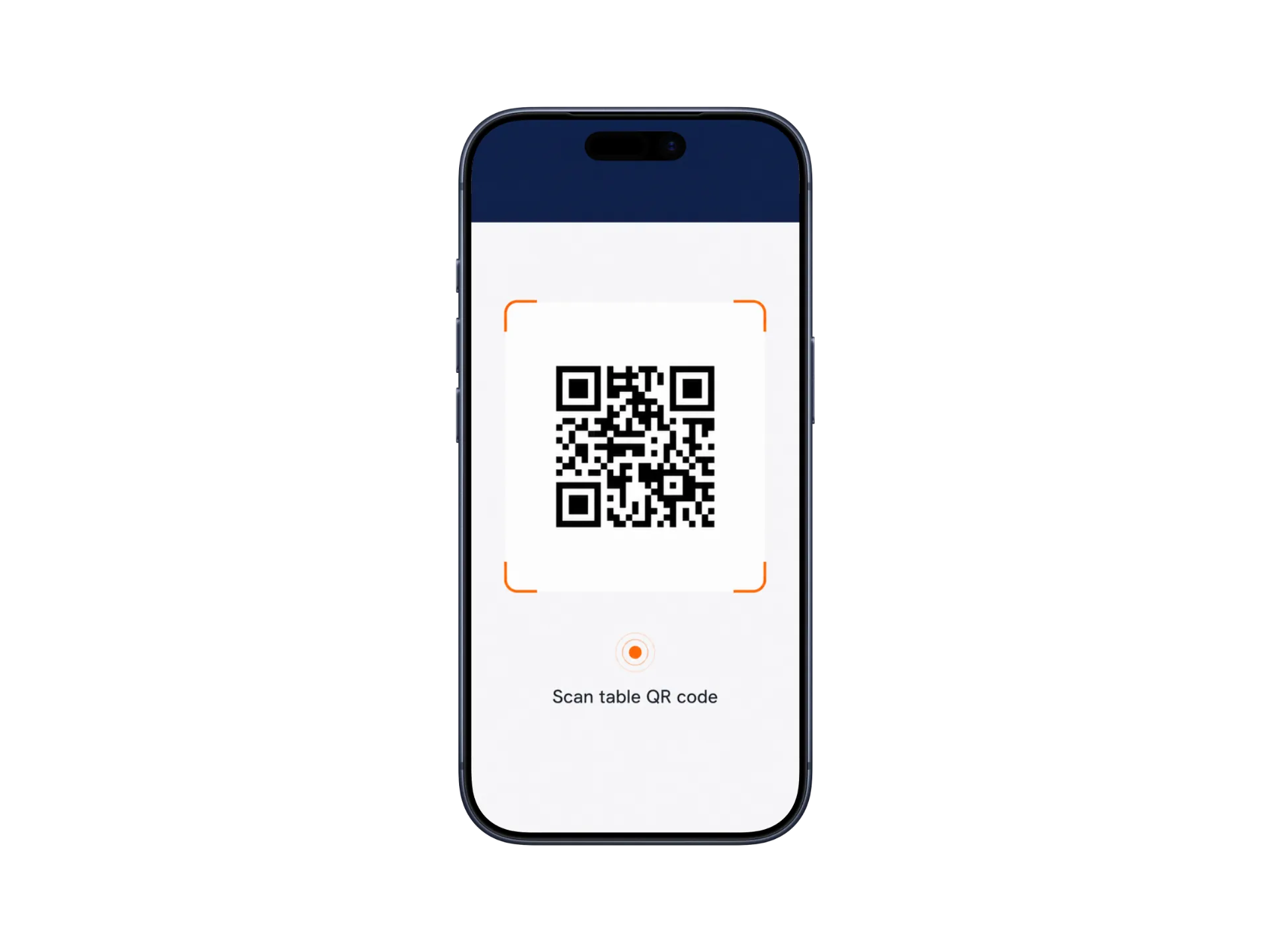
QR ordering support overview
Guest QR ordering preview

Illustrations use simplified UI with enlarged key elements. Actual screens may vary by product version and configuration.

Where It Fits

QR ordering adapts to different guest-service moments

Best Fit

Dine-In Restaurants

Guests scan at the table, order together, add notes, and reduce waiter handoffs.

01

Dine-In Restaurants

Guests scan at the table, order together, add notes, and reduce waiter handoffs.

  • Table QR
  • Shared order
  • Add dishes
02

Quick Service

Counter QR ordering helps customers browse and order before reaching the cashier.

  • Shorter queues
  • Takeaway
  • Fast menu access
03

Cafe & Beverage Shops

Guests choose toppings, sugar levels, ice levels, and member benefits clearly.

  • Options
  • Member offers
  • Pickup flow

Business Value

Visible gains when guests order from their own phones

40%

Less waiter order-taking pressure

30%

Faster table ordering flow

20%

More add-on ordering opportunities

24/7

Always-available digital menu

We Have the Answers

Common questions about QR ordering setup, member flow, and kitchen sync

No. Guests can open the ordering menu through a web page after scanning the QR code.